Transactions
How do I change the transaction date?
Move a transaction to the date or month it should count toward in Finance AI.
Quick answer
Open the transaction, tap the Date row's Change action, enter the new date in YYYY-MM-DD format, then tap Save.
Steps
- 1Open Finance AI on your iPhone.
- 2Find the transaction in the transaction list, search results, category drill-down, or assistant chat.
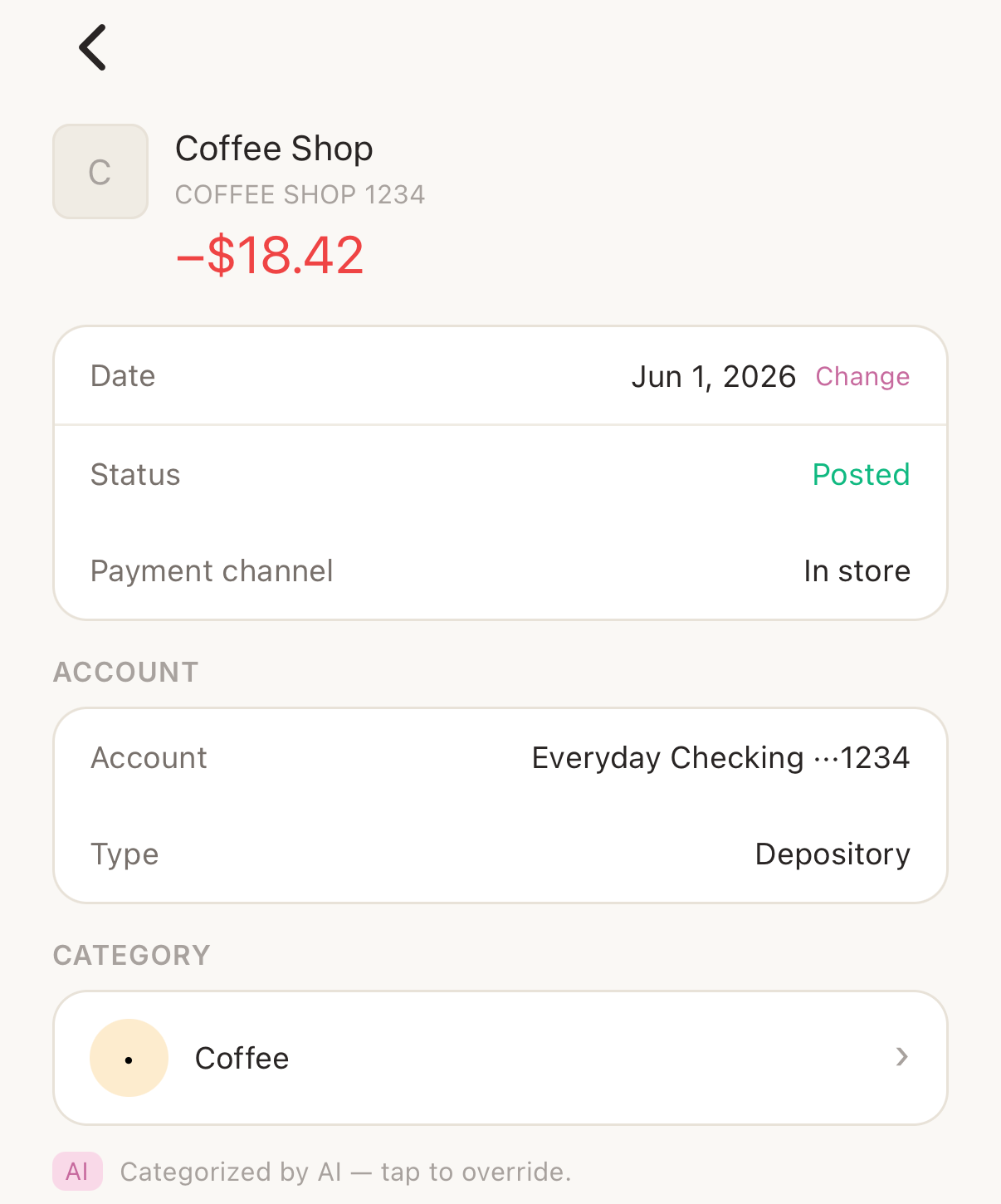
- 3Tap the transaction to open its detail screen.
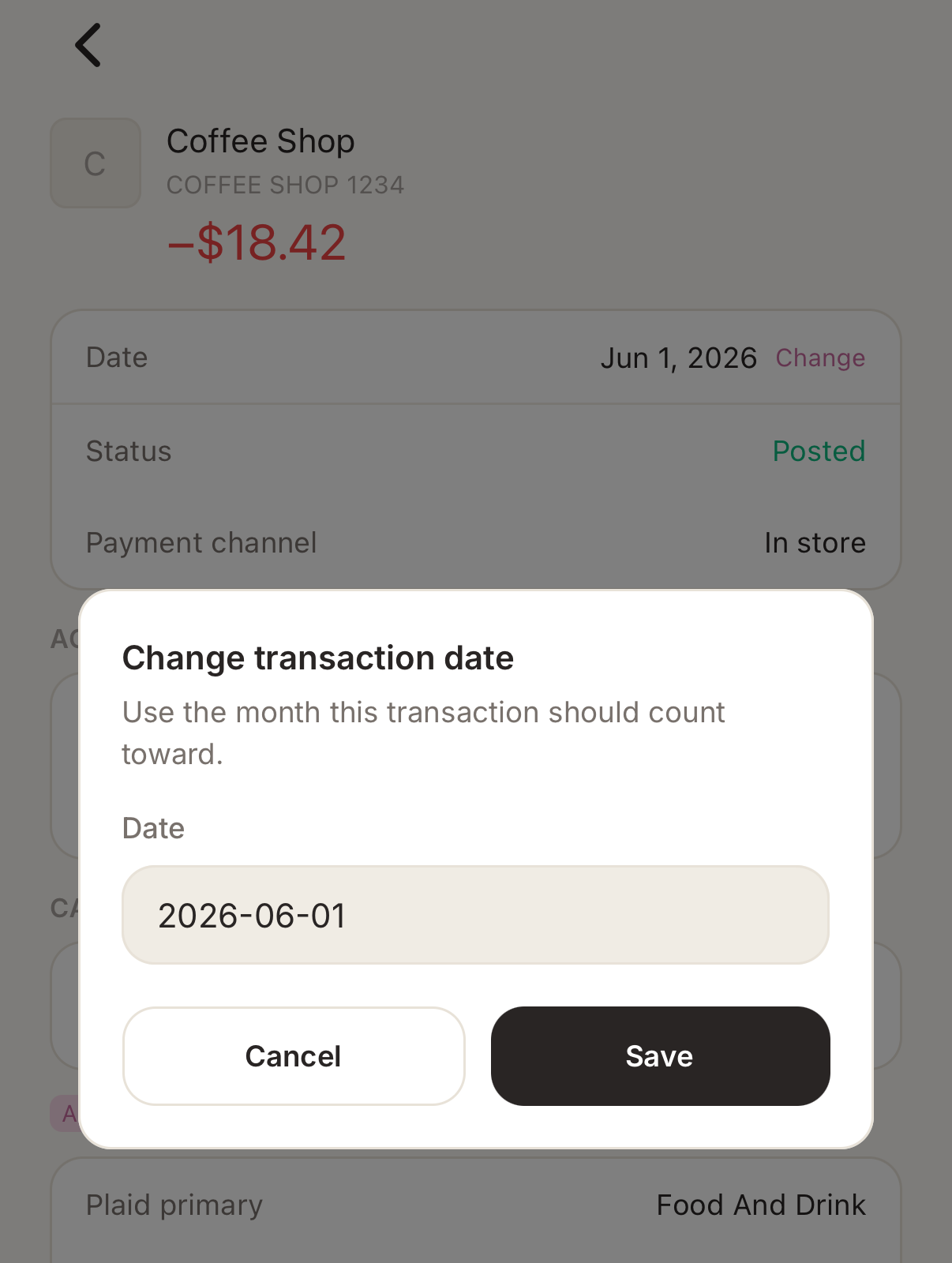
- 4In the Date row, tap Change.
- 5Enter the date the transaction should use, such as 2026-06-01.
- 6Tap Save. Finance AI updates charts, goals, and category totals that depend on that date.
When to use this
Use this when a posted transaction landed on the wrong calendar day, or when you want it to count toward a different month for spending, income, net cash flow, or goal progress.
This is especially useful for month-end purchases, reimbursements, payroll deposits, refunds, and transactions that your bank posts a day or two later than expected.
What changes after saving
The transaction keeps the corrected date you chose. Future bank syncs update merchant, amount, logo, pending status, and other provider fields, but Finance AI preserves your manual date override.
The new date is used anywhere Finance AI groups by time period, including monthly spending, income, cash flow, category charts, and spending goal progress.